Skip to content
 Recommended for These People
We recommend this article to those who are just starting their WordPress website or want to systematically understand theme and style settings. It is useful for beginners who want to learn basic WordPress terminology and setup methods to build their own website.

Overall Review
This article is a comprehensive guide to styling the core elements of WordPress: themes and widgets. It explains in detail from basic WordPress concepts to various theme setting options and detailed style adjustments for widgets. In particular, the method of explaining with the button widget as an example is structured so that beginners can easily follow along. It will be a reliable guide for those building their first WordPress website.
Reference Tips
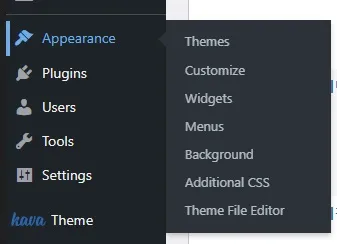
- WordPress themes provide the basic framework for a website and can be managed in the ‘Appearance’ > ‘Themes’ menu.
- Through the theme customization feature, you can adjust the site’s identity, general settings, colors, typography, and more.
- In widget settings, you can finely control the content and design of each element through the Content, Style, and Advanced tabs.
Read More from the Original
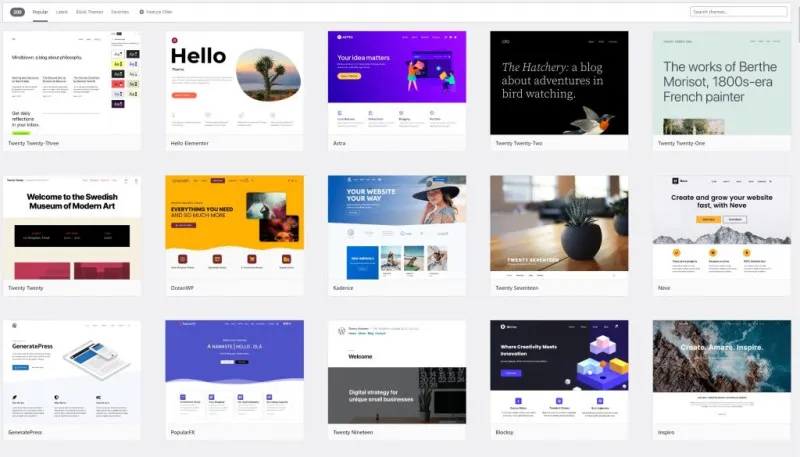
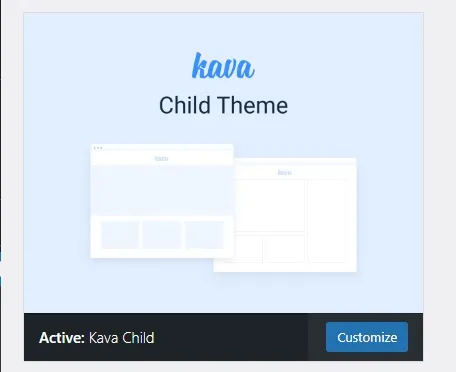
This article is written for users who are new to WordPress theme and widget settings. Themes provide the basic design framework for a website, and you can explore and apply various themes in the ‘Appearance’ > ‘Themes’ menu. The author uses the Kava Child Theme, but emphasizes that the basic usage is the same regardless of the theme used. In the theme customization feature, you can set overall design elements such as the site title, favicon, layout, colors, and typography. In particular, the ‘Typography’ settings allow you to adjust font sizes, weights, and widths from H1 to H6 to improve readability.
In the widget settings section, the functions of the ‘Content’ and ‘Style’ tabs are explained in detail using the button widget as an example. The ‘Content’ tab allows you to set the button’s text, link, alignment, and icon, while ‘Link Options’ provides advanced settings such as opening in a new tab or adding a nofollow attribute. The ‘Style’ tab allows you to freely customize the visual elements of the widget, including typography, text shadow, background color, borders, and padding. It specifically demonstrates how to enhance user interaction by setting style changes for ‘Normal’ and ‘Hover’ states. The difference between ‘Padding’ and ‘Margin’ is also clearly explained through examples, reducing confusion during design work.
This article contains essential information for WordPress beginners to understand and utilize themes and widgets. The detailed explanations along with the provided example images help understanding by visually showing how each setting is applied to the actual website. The ‘Advanced’ section is planned to have content added later, and it will provide practical help to those who want to build their own WordPress websites.