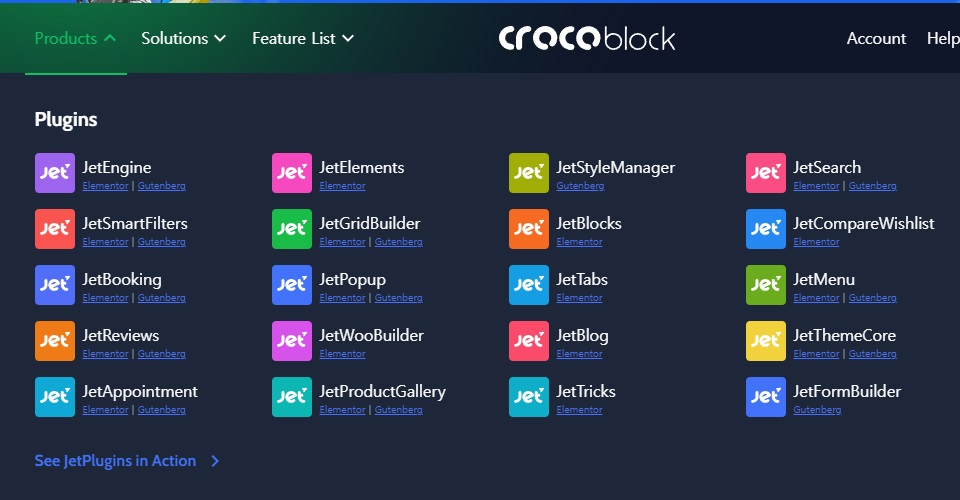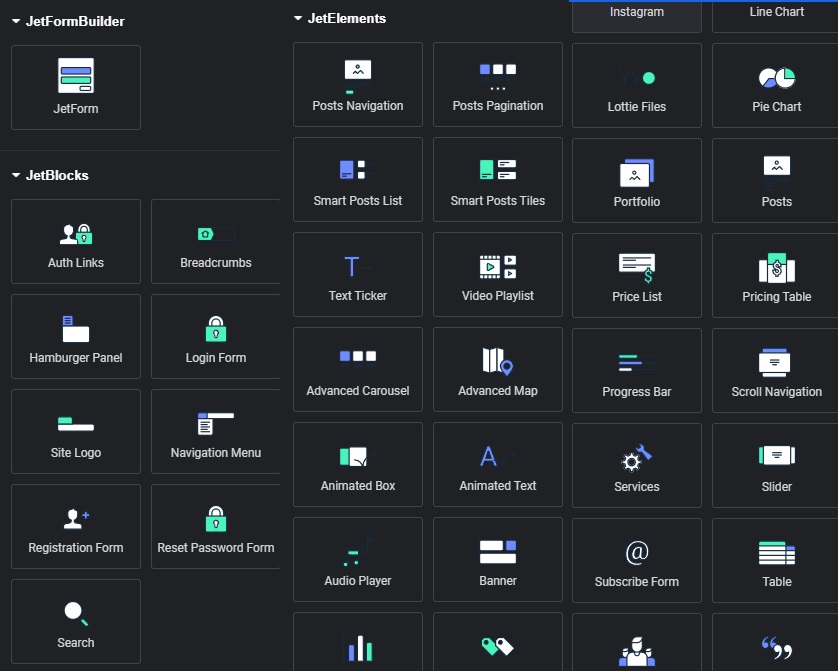
First, when I wrote about the intended use of the WordPress bulletin board, I mentioned that I would mainly use Elementor and Crocoblock and explain them.
Elementor can be thought of as a tool that makes it easy to edit when creating a website with WordPress.
WordPress basically lays the foundation for creating a website, but detailed settings require basic programming knowledge. Elementor visualizes that part and helps even beginners create easily.
However, since this is also a plugin created with programming, it can be less user-friendly than expected if you don’t read the explanations carefully, and sometimes it may not be implemented as the user intended.
This usually happens when you try to implement something that cannot be implemented through the plugin’s programming. To implement this, you would need to study separately and implement it without using the plugin.
However, in most cases, Elementor alone is sufficient.
I am currently subscribed to and using the Elementor Pro feature. However, this is not essential, and if you decide to use Elementor, I recommend purchasing it only after you become somewhat familiar with it and feel the need for additional features yourself.
Differences in Usage
To explain the basic differences, we can take the editor as an example. When editing pages or posts within WordPress, you enter the default editor screen.
This is the screen you see when you click the Add New button on a Page or Post.
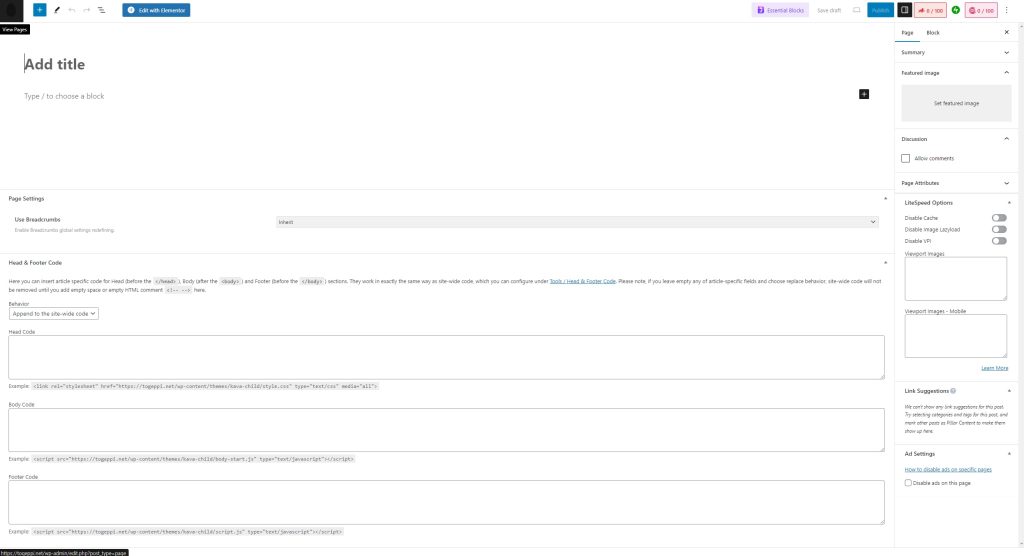
My screen might look different because I have plugins installed, but generally, you start from a similar state.
It might feel different for everyone, but if you’ve posted on general blogs like Naver Blog, you might be taken aback.
I was too, and without reading the explanations, even after completing the WordPress installation, I had no idea how to proceed further.
Now, let’s enter the Elementor editor.
In the top left of the screenshot above, you’ll see the “Edit with Elementor” button. If Elementor is installed, this button will be activated. Clicking it will take you to the Elementor editor.
(After installing Elementor, you need to set the permission to edit this category using Elementor, which I will explain later.)
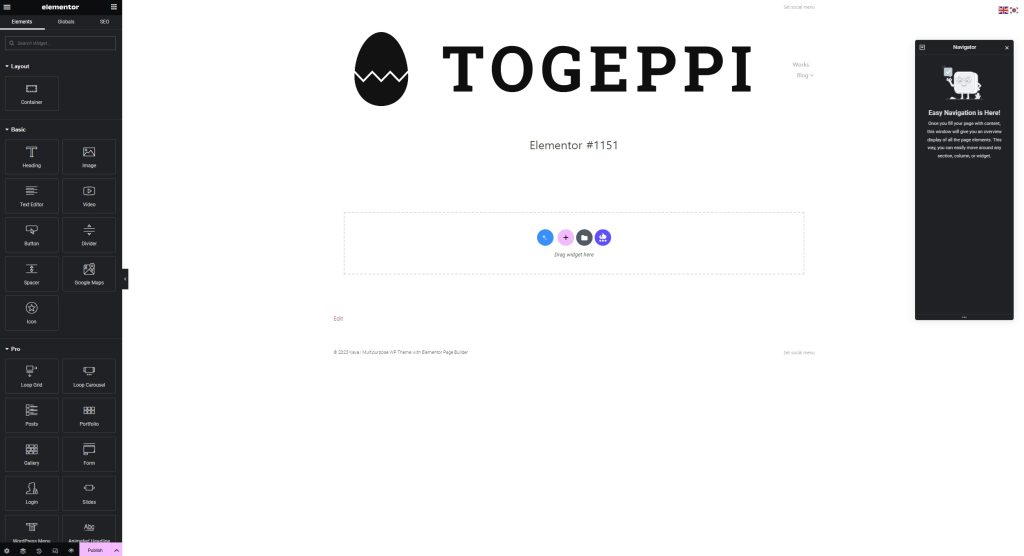
Looking at the screenshot, it still seems a bit confusing from a beginner’s perspective. ㅋㅋ I’ve set the site logo to the TOGEPPI logo in my theme, so the default settings appear like this.
On the left sidebar, you’ll see a list of widgets. You can check their purposes by trying them out individually.
Clicking and dragging a widget from the left sidebar to the editing area in the center will activate the widget.
Let’s try dragging a Text Editor widget.
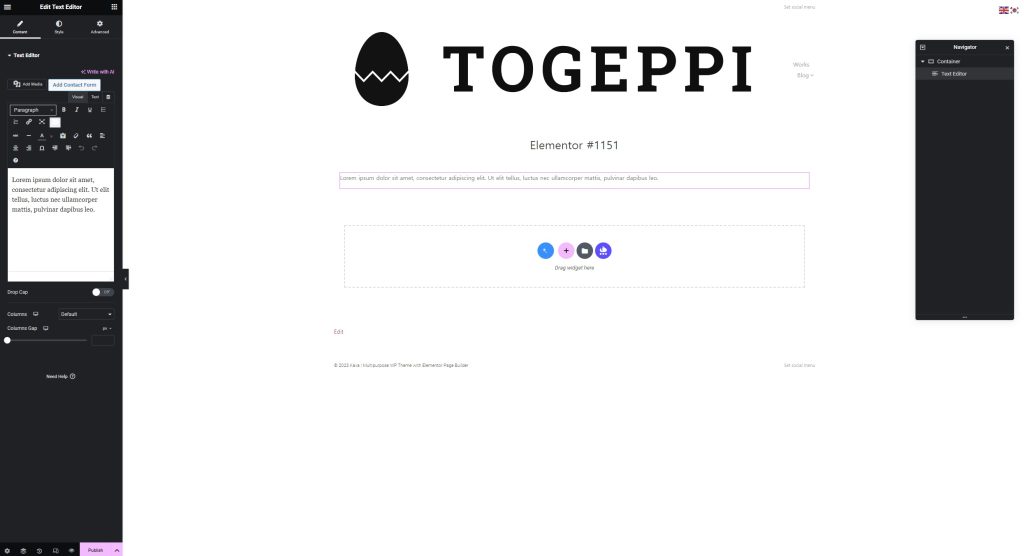
When no text is entered in the text editor, the default text is displayed. You can modify the content and set the style from the left sidebar.
Style, in simple terms, refers to various design settings such as text color, size, width, etc.
On the right, there is a Navigator, which shows the order in which the currently active widgets are arranged in the editor.
You might not use it much at first, but its utility will increase as you become more familiar with it.
In this way, you can add and arrange text widgets, image widgets, and so on, and post articles or design your site in your own way.
I’ve explained the most basic difference. When using Elementor’s features, in addition to the default WordPress widgets, various Elementor widgets are also added.
There are many additional features, so I found it convenient to use.
Crocoblock

Crocoblock is not a feature that changes the editor like Elementor.
I’m not a complete expert, so I don’t know everything perfectly, but from my experience, I think it allows for various designs and expressions by utilizing widget extensibility.
As I mentioned earlier, all design is fundamentally done through programming, WordPress simplifies this, and plugins make it easier to use.
Crocoblock fulfills that role well and activates most widgets that can be implemented with general ideas.
For example, if you want to use a plugin with a specific function in WordPress and search for and install it, you have to install and use each function separately.
Crocoblock has all of these included, which I see as an advantage. It’s also easy to link them together.
Of course, many people use other plugins, and there might be better ones, but since I started with this, it seems good from my perspective.